Instructor Rates let you define default payment rules for instructors. These rates act as the standard template Administrate uses to determine how much an instructor should be paid for a course.
You can override these defaults with instructor-specific rates on an individual instructor record.
Contents
Overview
Instructor Rates help you standardize how instructors are paid across your organization.
Using Instructor Rates makes it easier to:
- set default payment rules for instructors
- report on how much instructors should be paid over a given period
- track whether instructor payments have been sent to payroll
- reduce the need to create purchase orders for every event or instructor use
Instructor Rates are configured using:
- course
- region
- currency
- rate of pay
- rate multiplier
These default rules can then be copied to instructors and adjusted later where needed.
How Instructor Rates work
Each Instructor Rate defines how much an instructor should be paid for delivering a specific course in a specific region.
The rate also includes a payment unit, such as per hour, per day, or per session.
This is important because sessions and days are not always the same. An event may contain more than one session in a single day, depending on how the event has been set up.
After you save default Instructor Rates in the Control Panel, you must apply them to instructors using the Copy Defaults tool. If you do not do this, the rates will not be recorded against instructor records.
You can also go directly to an instructor’s contact record to view, add, or edit rates that apply only to that instructor.
Add an Instructor Rate
In the Control Panel, navigate to Instructor Rates in the Events section.
In the input fields on this screen, you can start typing to narrow down the available options and find the value you need more quickly.
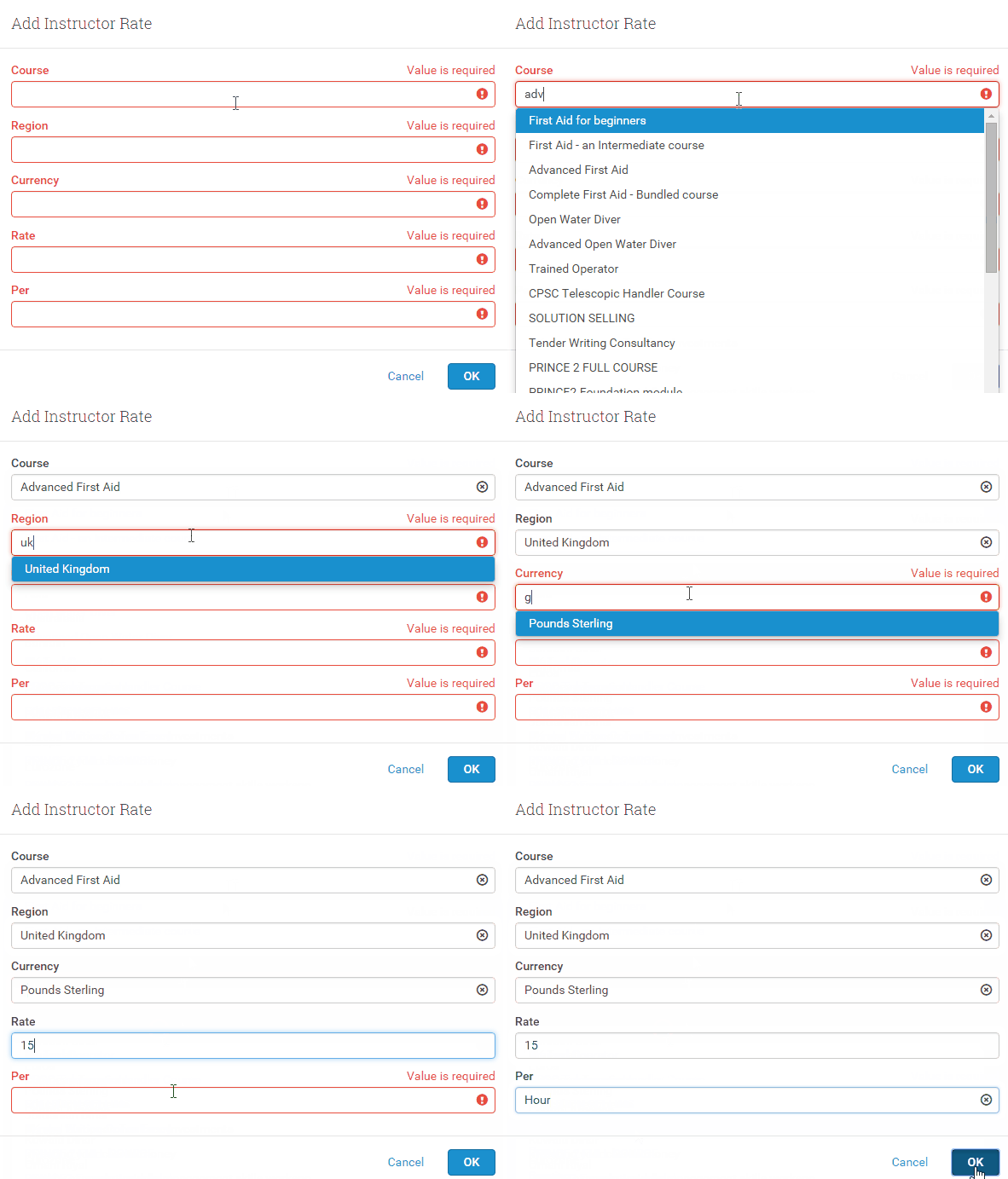
- Click Add.
- Select the Course.
- Select the Region.
- Select the Currency the instructor should be paid in.
- Enter the monetary amount to be paid for that course.
- Select the Per value to define how the rate is multiplied. For example, if the instructor is paid hourly, select Hour.
- Repeat these steps to add additional rates if required.
- Click Save.
After saving, use the Copy Defaults tool to apply the saved rates to instructors.
Copy Defaults
The Copy Defaults option in the Tools menu lets you copy the Instructor Rates configured in the Control Panel to instructor records.
You can copy rates in three ways:
| Option | Use case |
|---|---|
| Copy to Specific Instructors | Apply rates only to selected instructors |
| Copy to All Instructors | Apply all default rates to every instructor at once |
| Copy to Instructors with no Rate Information | Populate only instructors who do not already have rate data |
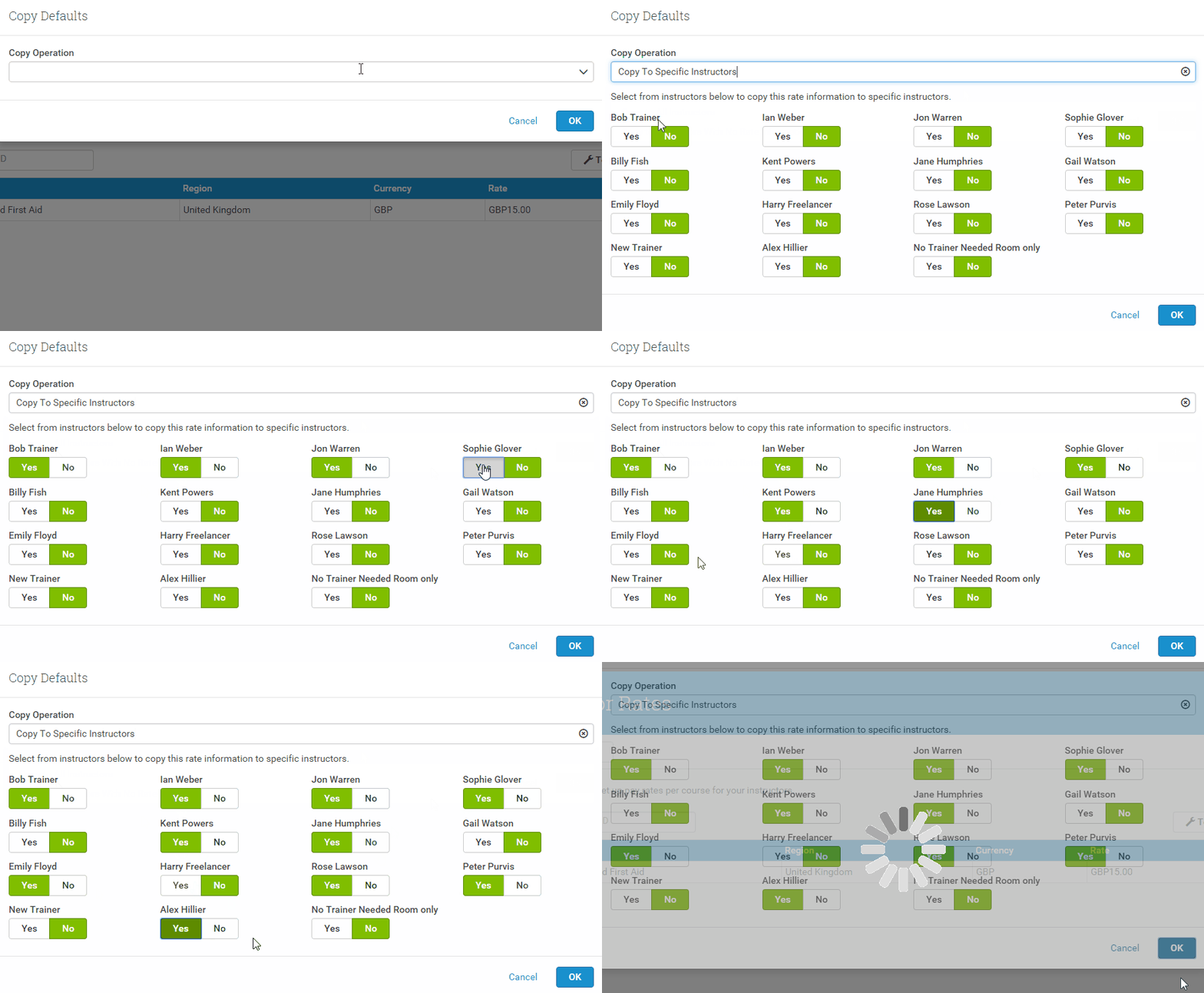
Use this tool whenever you create or update default Instructor Rates and want those changes applied to instructor records.
For instructor-specific exceptions, edit the rates directly from the instructor’s contact record.